

드롭쉬핑 비즈니스 관리 대시보드 템플릿
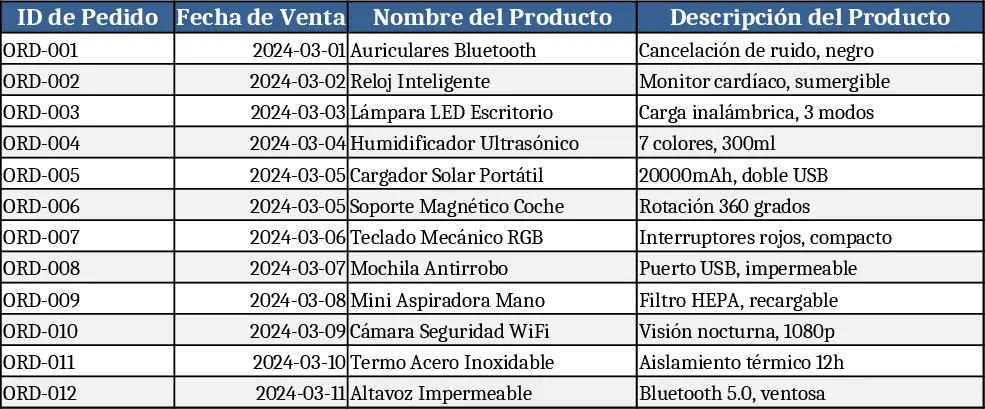
This template is built around a single Master Orders sheet that captures every transaction in your dropshipping business. The sheet contains the mandatory columns you requested – Order ID, Sale Date, Product Name, Product Description, Cost Price (Supplier), Sale Price (You), automatically calculated Profit Margin, and Order Status. The Profit Margin column uses the formula =[@[Precio de Venta (Mío)]]-[@[Precio de Cost (Comercializadora)]] so the value updates instantly as you edit prices. Order Status is a drop‑down list (Pending, Shipped, Delivered, Cancelled) created with data‑validation, keeping entries consistent for reliable reporting.
The workbook also includes three pre‑configured PivotTables on separate sheets: Monthly Sales Report, Product Ranking, and Product Profitability. Each PivotTable is linked to the master table and comes with slicers for easy filtering by month, product, or status. The Monthly Sales Report shows total sales volume and cumulative margin per month, the Product Ranking lists top‑selling items by quantity, and the Product Profitability view highlights which SKUs generate the highest margins. All pivot tables refresh automatically when you add new rows to the master sheet.
This solution is ideal for dropshipping entrepreneurs, e‑commerce managers, and small‑business owners who need a clear, low‑cost way to monitor order flow, revenue, and profitability without learning complex BI tools. By centralising order data and providing instant visual KPIs, the template eliminates manual calculations, reduces spreadsheet errors, and gives you a quick pulse on which products are driving profit and where inventory or shipping bottlenecks may exist.
사용 방법
- Open the Master Orders sheet and start entering your daily orders. Use the drop‑down in the Order Status column to keep status values uniform.
- Verify that the Profit Margin column shows the correct difference; the formula is already applied to the entire column.
- Go to the Monthly Sales Report sheet, click any cell inside the PivotTable, and choose Refresh (or press Alt+F5) after adding new data.
- Use the slicers on each PivotTable to filter by month, product, or status and instantly see updated totals and rankings.
예상 효과: you’ll spend far less time reconciling sales data, gain instant insight into profit drivers, and make faster, data‑backed decisions about product selection and order fulfillment.
