
12개 항목 견적서 로고·이미지 박스 템플릿
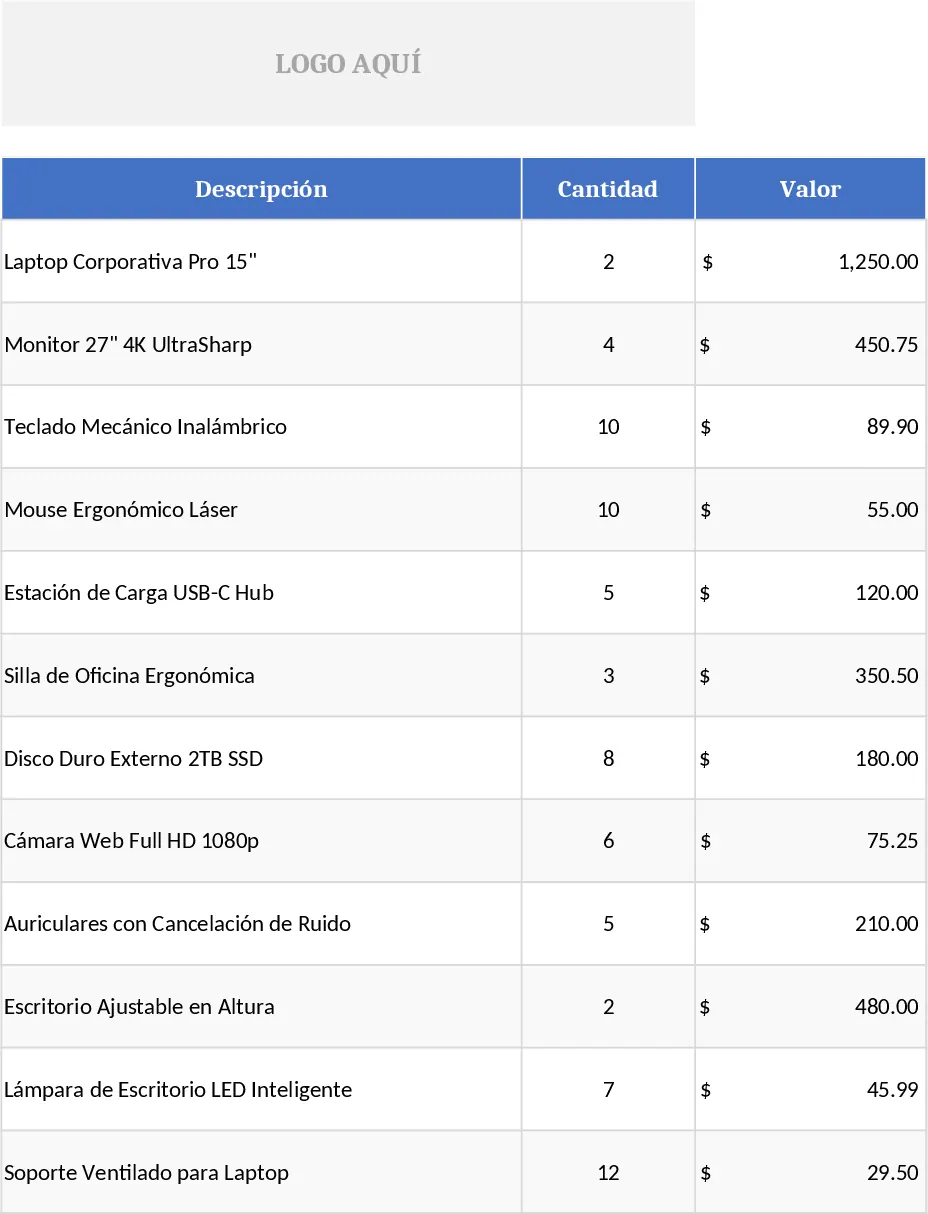
This Excel quotation template is built for sales teams and freelancers who need a clean, printable quote that reflects their brand. The workbook contains a single sheet divided into three clear sections: a header for your company logo and contact details, a body with up to 12 line‑item rows for products or services, and a footer that holds a dedicated box for a product image and total calculations. Each line‑item row includes fields for description, quantity, unit price, discount (optional dropdown of common percentages), and a formula that automatically calculates the line total. The header area has a placeholder where you can paste or insert your logo, and the footer image box lets you drop a picture of the featured product, making the quote visually appealing. At the bottom, a summary table aggregates subtotals, tax, and grand total, updating instantly as you edit quantities or prices.
The template solves the common hassle of designing a quote from scratch each time you need to send one. By standardising layout, branding, and calculations, it eliminates manual errors, speeds up preparation, and ensures every proposal looks professional. It’s especially useful for small businesses, independent consultants, and sales reps who send multiple quotes daily and want to keep a consistent look without spending time on design or complex formulas. The built‑in dropdown for discounts and the auto‑filled totals mean you can focus on negotiating rather than re‑calculating numbers.
Anyone who regularly prepares price proposals—whether a sales manager, a freelance designer, a hardware supplier, or a service provider—will find this template handy. It works well when you need to present a limited set of items (up to 12) with clear pricing, include a product photo for visual reference, and maintain brand identity through your logo. The template also helps you keep a quick record of sent quotes because each file can be saved with a unique name, and the summary row can be copied into a master tracking sheet if you wish.
How to use
- Open the workbook and replace the placeholder in the top‑left corner with your company logo (insert → picture or copy‑paste). Adjust the size to fit the frame.
- Fill in the client’s details in the designated cells (name, address, contact). These fields are highlighted for easy entry.
- For each product or service, enter the description, quantity, unit price, and select a discount from the dropdown if applicable. The line‑total column will calculate automatically.
- Insert a product image into the boxed area at the bottom by clicking the cell, choosing Insert > Picture, and resizing as needed. The summary section will instantly update the subtotal, tax, and grand total.
Expected benefits: you’ll spend far less time formatting each quote, reduce calculation errors, and present a polished, branded document that helps win business faster.