
Monthly Budget Tracker with Visual Dashboard Template
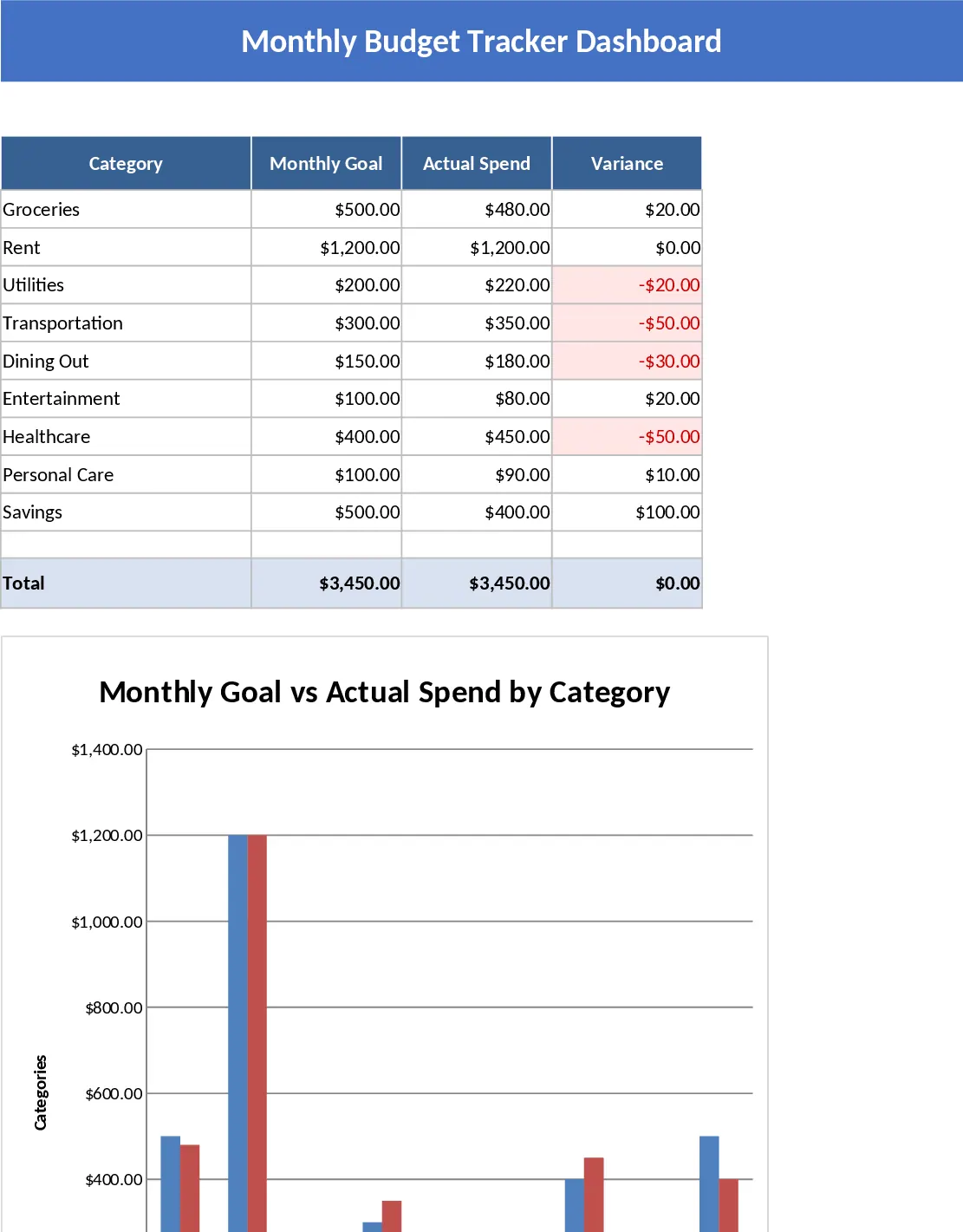
The Monthly Budget Tracker is a ready‑to‑use Excel workbook that lets you record every expense, assign it to one of ten predefined categories, and instantly see how your actual outflows stack up against the amounts you planned for the month. The file is organized into four tabs: Input (where you log date, description, amount, and select a category from a drop‑down list), Categories (a reference table that holds the ten budget categories and your target amounts for each), Dashboard (dynamic charts and gauges that highlight overspend, underspend, and overall budget health), and Summary (a concise table that aggregates totals, variances, and percentage of budget used). All calculations are powered by simple formulas and pivot tables, so you can modify categories or targets without breaking the layout.
By centralizing your spending data, the template eliminates the guesswork that often leads to budget overruns. It automatically flags categories where you exceed your goal, shows trends over the month, and provides a visual snapshot that’s easy to share with a partner or financial advisor. The dashboard’s bar charts and donut graphs make it simple to spot where most of your money goes, helping you make smarter decisions about where to cut back or re‑allocate funds. Whether you’re trying to save for a vacation, manage household bills, or keep a freelance business afloat, this tool turns raw numbers into actionable insights.
The workbook is ideal for individuals, couples, or small‑team managers who need a clear, visual way to monitor personal finances without learning complex accounting software. It works best for anyone who sets monthly spending limits and wants a quick, at‑a‑glance view of progress. Because the categories are customizable, you can adapt it for project‑based budgets, departmental cost tracking, or even a simple allowance system for kids.
How to use
- Open the Input sheet and start entering each transaction: date, description, amount, and pick the appropriate category from the drop‑down list.
- Go to the Categories tab to set or adjust your monthly targets for each of the ten categories.
- Refresh the Dashboard (the charts update automatically) to see real‑time comparisons of actual spend vs. goals.
- Review the Summary tab for a quick table of totals, variances, and percentage of budget used for the month.
Expected benefits: you’ll spend far less time reconciling receipts, gain immediate visual feedback on spending patterns, and make more informed budgeting decisions with minimal effort.
相似模板推荐
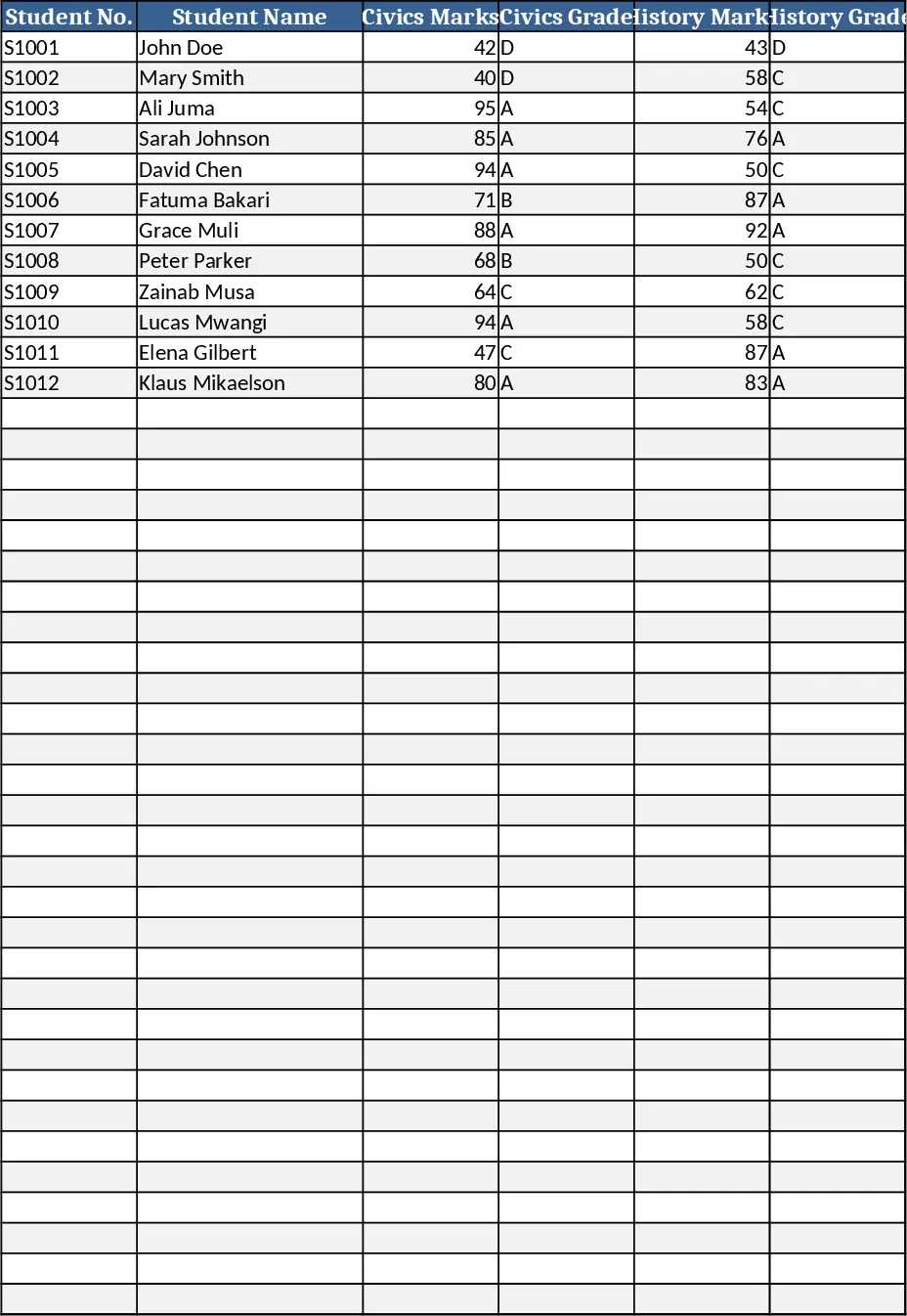
Secondary School Results and Ranking Template
Track up to 200 secondary students' marks, auto‑calculate grades, averages, divisions and rankings in a clear, formatted sheet.
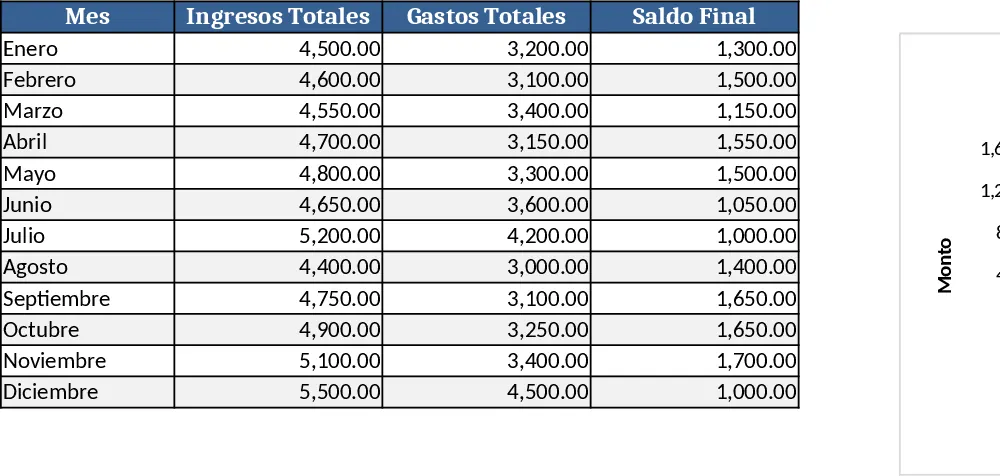
Couple Budget and Cash Flow Tracker Template
Track monthly income, expenses, and cash flow for a working couple, visualize budgets and savings goals in one spreadsheet.
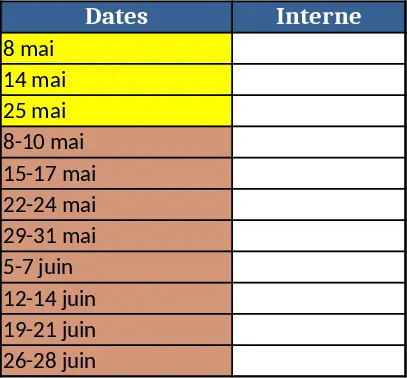
Date Range and Internal Log Template
Create an Excel file with two columns for dates and internal notes, with colored rows for different date ranges.