
Project Task Tracker & Overview with Conditional Formatting Template
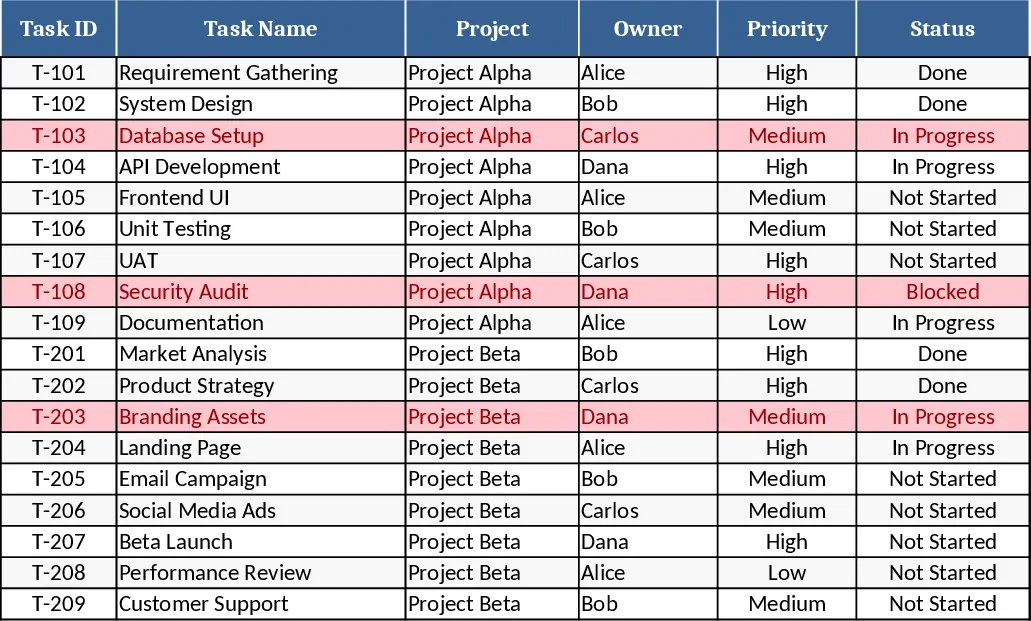
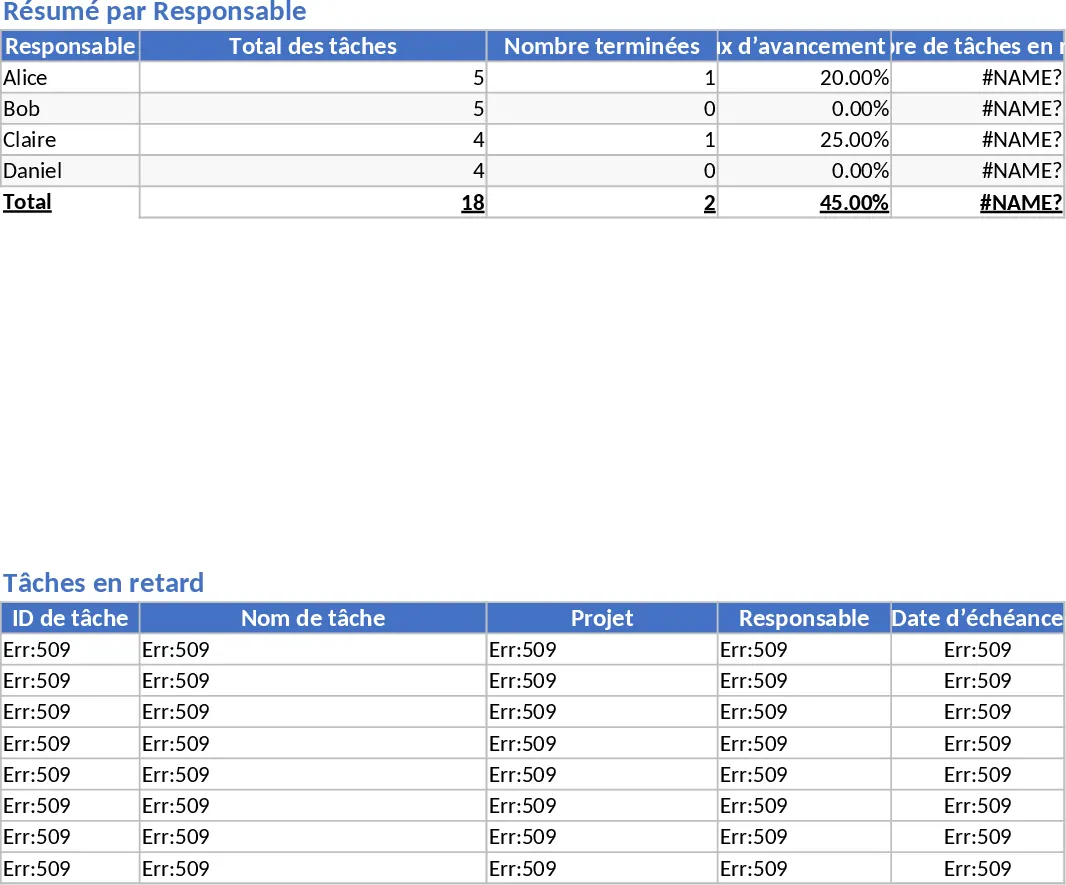
The Project Task Tracker template is built on two worksheets that work together to give you a clear picture of every task across multiple projects. The Tasks sheet lists each work item with columns for Task ID, Task Name, Project, Owner (chosen from a dropdown), Priority (High/Med/Low), Status (Not Started/In Progress/Blocked/Done), Start Date, Due Date, Estimated Hours, Actual Hours, Dependencies, and Notes. Conditional formatting flags any overdue tasks—those whose Due Date is earlier than today and whose Status isn’t Done—in bright red, so you can spot problems instantly. The Project Overview sheet aggregates the data, showing a summary by Owner (total tasks, completed tasks, completion percentage, overdue count) and by Status, plus a table that pulls out all overdue tasks with their key details for quick follow‑up. Sample data for 18 tasks across two projects is pre‑filled to illustrate how the sheets interact.
This template solves the common headache of scattered task information and manual status reporting. By centralising task details and automatically calculating progress metrics, it eliminates the need for separate spreadsheets or endless email updates. Project managers and team leads can instantly see who is overloaded, which tasks are at risk, and overall project health, enabling faster decision‑making and better resource allocation. The visual summaries and overdue alerts keep the team aligned and reduce the chance of missed deadlines.
Anyone who runs projects—whether in IT, marketing, construction, or any other field—can benefit from this tool. It’s especially useful for small‑to‑medium teams that need a lightweight, no‑cost solution for task management without investing in dedicated software. The template helps you track task ownership, priority, and status, monitor time estimates versus actual effort, and manage dependencies, giving you a single source of truth for project execution.
How to use
- Open the workbook and go to the Tasks sheet. Add or edit rows, selecting Owner, Priority, and Status from the dropdown lists; fill in dates, hours, and any notes. The Due Date column is mandatory, and overdue items will turn red automatically.
- Switch to the Project Overview sheet to see the live summaries. The tables update instantly as you modify the Tasks sheet.
- Use the Owner and Status summary tables to identify bottlenecks or re‑assign work. The Overdue Tasks table lists any tasks that need immediate attention.
- Save the file and share it with your team; collaborators can update their own tasks, and the dashboard will stay current.
Expected benefits: you’ll spend less time gathering status updates, reduce manual calculations, and gain quicker insight into project health, freeing up time for actual project work.
相似模板推荐
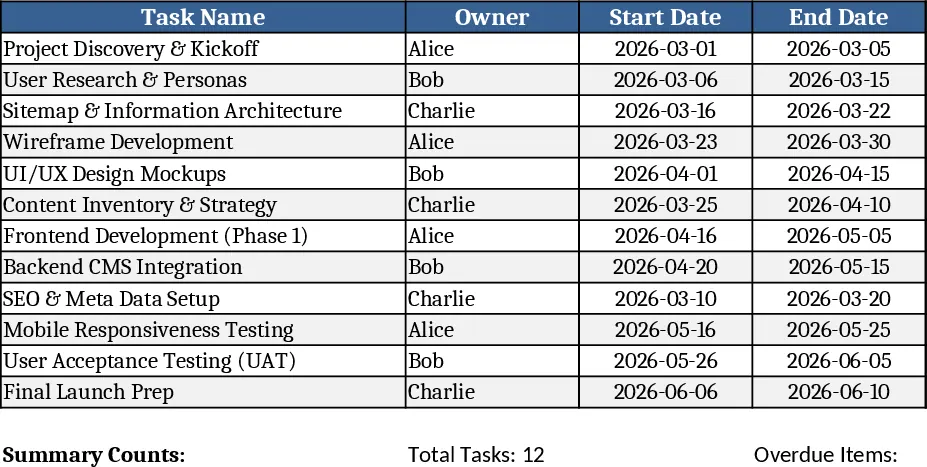
3-Month Website Redesign Task Tracker Template
Track and manage every website redesign task over three months, see owners, dates, status, and get instant overdue alerts.
Project Task Tracker with Overview Dashboard and Project Timeline Template
Manage project timelines and team workloads with a comprehensive task tracker featuring automated status summaries and overdue task alerts.
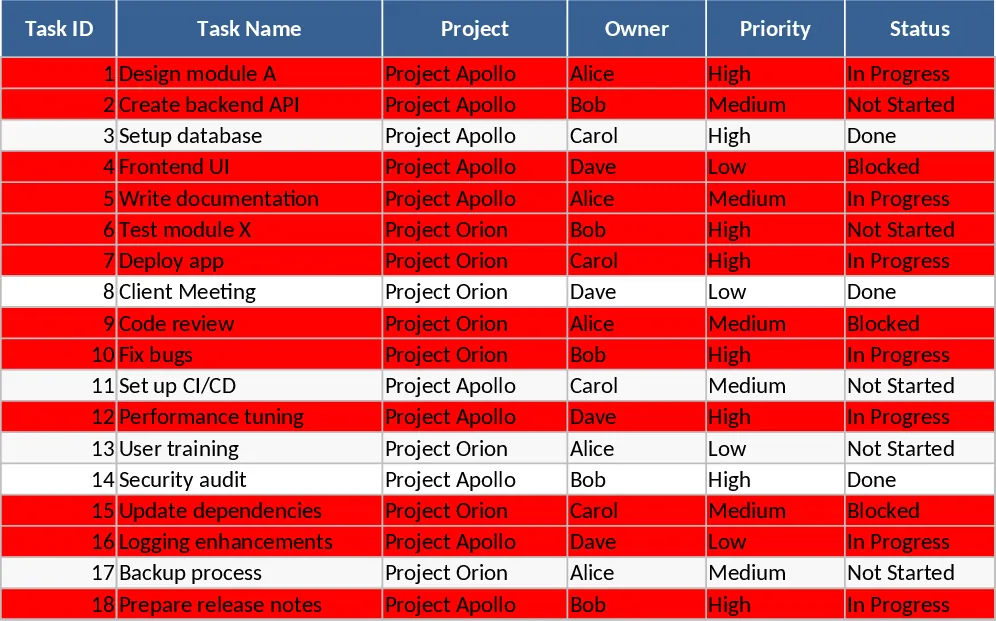
Project Task Tracker with Performance Dashboard Template
Track project tasks, monitor deadlines with automated alerts, and visualize progress through a comprehensive summary dashboard.